Suppose you're preparing the party for 31st December and one of your friends came up with a new idea to have fun during the party (31/12/2012, 13.00 p.m. -.-) "Hey hey hey what about doing some karaoke tonight?" ... Really cool my friend, I have a bunch of karaoke files but unfortunately, at the moment, I haven't any sort of device to connect to your TV.. no, wait a moment, I have a Raspberry Pi :) This was my final result:
Let's see how to build a karaoke machine in
5 simple steps.
1. Prepare your Raspberry Pi:
download the last image of Raspbian from http://www.raspberrypi.org/downloads,
unzip the archive and
flash it on a sdcard with dd
dd bs=1M if=/path/to/2012-12-16-wheezy-raspbian.img of=/dev/sdX
2. Put your sdcard in your Raspberry Pi, connect it to your TV and your LAN, then boot it. You need to use a graphical interface, so run:
startx
3. Open your terminal and install PyKaraoke, running:
sudo apt-get install pykaraoke
4. Prepare your karaoke machine: copy all your karaoke files in a new folder into Raspberry Pi, e.g.
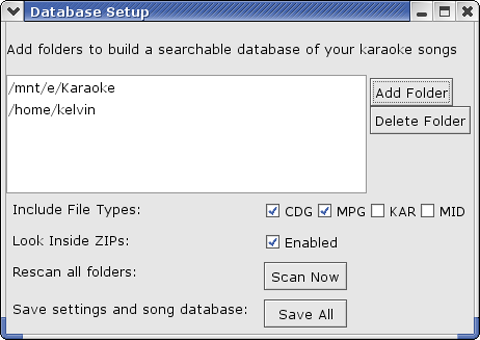
~/karaoke, and import this folder in PyKaraoke. Open PyKaraoke and click on Add Songs, this window will pop up:
Press Add Folder, add your folder containing your files (~/karaoke for me), Scan Now then Save All.
5. Test your machine: try searching for your songs using PyKaraoke, with a double click on one of them should pop up lyrics on your TV.
Well done, now you're ready to rock :)
Thank you Raspberry Pi!